
NANO toolbox User Manual
Version 1.1.0 · Windows 10 or 11 (64-bit)
Use NANO toolbox to see your receiver’s position, apply RTK corrections, and record data.
1. Connect your receiver
- Download NANO toolbox v1.1.0. Extract the ZIP and double-click
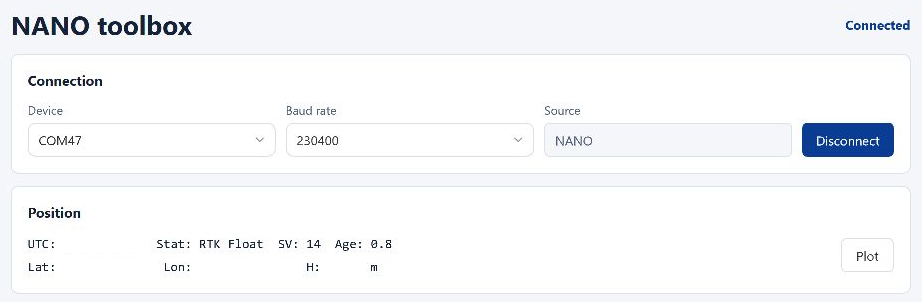
NANO-toolbox.exe. - Power on the receiver and connect it to the computer. Under Connection, select the receiver’s COM port in Device. Set Baud rate to match your receiver. The toolbox starts at 230400.
- Click Connect. Look for live data in Position. If the receiver is still looking for satellites, it may take a moment to show a position.
2. Set up RTK corrections
With the receiver connected over serial, open Corrections.
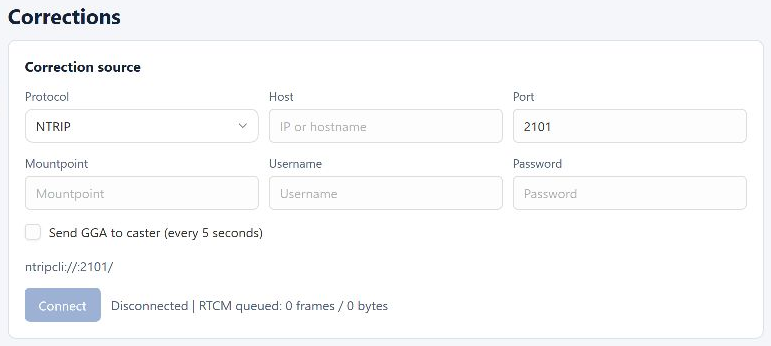
- For NTRIP, choose NTRIP. Enter the server address, port, mountpoint, and any login details from your provider.
- If your provider gives you a TCP address instead, choose TCP and enter the address and port.
Click Connect on the Corrections page. If your provider asks for your rover position, turn on Send GGA to caster (every 5 seconds). A rising frame count means corrections are coming in. Check Position for RTK Fixed.
3. Change receiver settings
You can skip this section if your receiver is already working as you need.
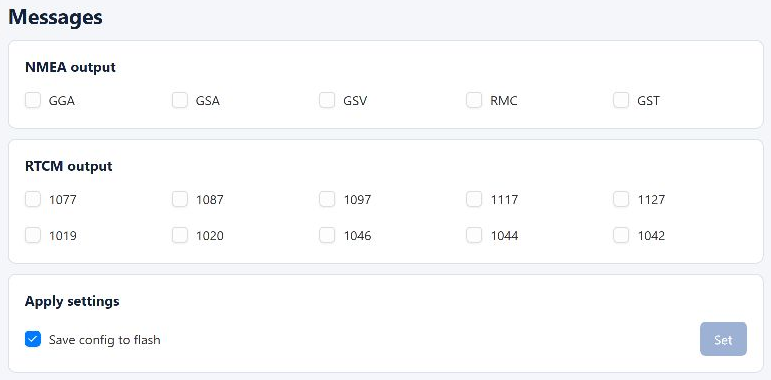
Choose NMEA and RTCM output messages
Open Messages and select the outputs you need. Select Save config to flash if you want to keep the settings after a restart, then click Set.
Change output rate or serial baud rate
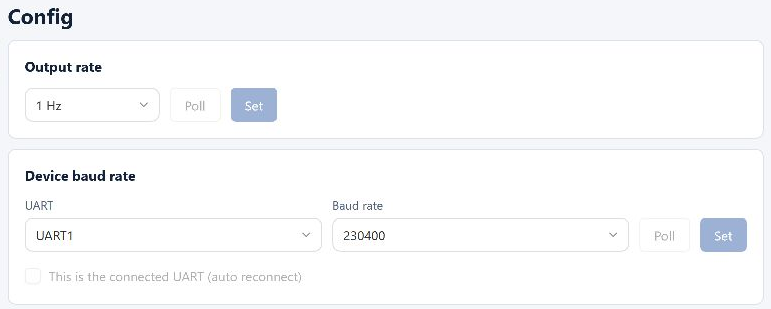
In Config, use Poll under Output rate to read the current setting. Choose 1 Hz, 5 Hz, or 10 Hz, then click Set.
To change the receiver’s serial speed, choose the receiver port under Device baud rate and click Poll. Select the new baud rate. If that port is connected to the computer, select This is the connected UART (auto reconnect) before clicking Set. Use Save to flash to keep your changes after a restart.
Restart the receiver
Use Hot start or Reset under Receiver actions when you need to restart a supported receiver. Wait for position data to return before continuing.
4. Record data or open a plot
- Before connecting, open Log and turn on Log to file. Turn on Log base stream to file if you also want to save the incoming corrections.
- Connect the receiver and, if needed, the correction source. Click Disconnect when you’re done to finish saving the files.
- Open the
logs/folder beside the toolbox. Keep each.datfile with its matching.dat.tagfile.
For a live plot, put RTKPLOT and its required files beside NANO-toolbox.exe, connect the receiver, and click Plot in Position.
5. Update NANO toolbox
Disconnect the receiver, then open About and click Check for Updates. If an update is available, follow the prompts and check About again after the app restarts.
If your copy has no updater, close the toolbox and replace just the executable with the one from the latest v1.1.0 ZIP. Keep your existing settings and logs.
6. Troubleshooting
- No COM port: Check the receiver’s power and data cable. Install the USB-to-serial driver if Windows needs it.
- The COM port won’t open: Close any other app using that port, then try again.
- Connected but no position: Check the baud rate and that the receiver sends GGA on that port. Give the antenna a clear view of the sky.
- No corrections or no RTK Fixed: Check the server details and mountpoint. If corrections are coming in, make sure the receiver accepts them on the connected port and allow time for a fix.
If you contact DATAGNSS, include the toolbox version, receiver model, and any error shown. Don’t share NANO-toolbox.json: it can contain your NTRIP password.